Posts

Showing posts with the label Tips and Tricks

Get Material Design 2.0 on Google Chrome Right Now!
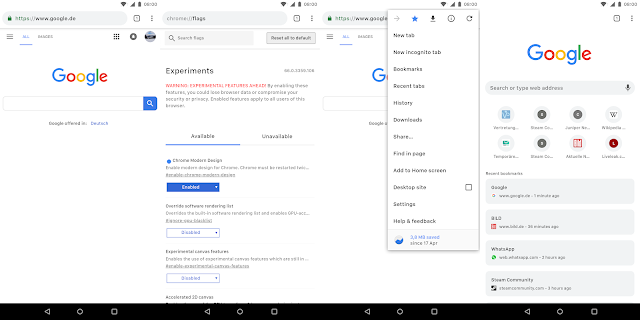
Image
Material design is slowly getting its very version which we enthusiasts are calling the Material Design 2.0.  It is a refreshed version of material design on which Google is still working. But the thing is that you can get this new design on your Chrome browser browser, both on your phone and PC. Luckily, you don't need any beta or canary version, just the latest stable version of chrome. Let's get into the steps right now! On your smartphone. Open chrome and type in chrome://flags and search there for modern design and enable the first flag you encounter. chrome://flags#enable-chrome-modern-design You may paste the given for it to work. And this is what it's gonna look like. On your PC.. Just open this link and change it from default to refresh or touchable if you are using a touch screen moniter: #top-chrome-md Just relaunch Chrome now and you are done. Here's how this one is going to look like after enabling the flag. Hop...

Making My Own Android Wallpaper!

Image
The Android lovers like me love different wallpapers on their phones every time now and then. But what, if you wnat to your own wallpaper for reasons like having your name or photo , whatever you want. This is where we comes in. Trust me guys, this way is really easy and time-saving if you can't use softwares like Photoshop or maybe don't know how to use them. I am using Canva, an online design making software which can be used for not only making wallpapers but tons of other things with great attractive templates. You can take a look in the video what I am doing and how easy it is..... You can suggest another videos that you want me to make in the comments section below. Hope you guys enjoy the stuff and keep on watching! Subscribe Here You May Also Li ke- 5 Most Weird Apps that Shamefully Exist on the Play Store! 5 Cool Websites You Should Visit! Keep on watching!

5 Cool Websites You Should Try Now!

Image
There are a ton of websites over the internet and as of that, it is quite difficult to find out the one which you need. I have find out some amazing ones (you may call them a time pass or fun, whatever) from the huge clutter of internet. So, let's dive right into it. This video is to demonstrate the use of these websites.You should watch that first before trying them out. Now that you have watched the video, here is the list of 5 cool websites you should try out now and enjoy. Links of the websites mention in the video- 1. Kick Ass www.kickassapp.com 2. YouTube TV www.youtube.com/tv 3. Web Archive www.archive.org 4. Flip Text www.fliptext.org 5. Cost of Living www.numbeo.com/cost-of-living/ Hope you guys enjoy the video, this was all from my side. Subscribe if want more amazing stuff upcoming soon!

14 MIUI Tricks Every Xiaomi Smartphone User Should Know!

Image
MIUI has a lot to offer whenit comes to features and stuff useful in everyday usage of your smartphone. There are some minor and interesting tweaks and features in this custom ROM that are pretty useful and should be known by every Xiaomi Smartphone user. Hope you guys enjoy the stuff I am uploading and providing.  Thumbs up if you are interested in more videos like that.   There are 14 tips/tricks provided int his video, respectively, 1. Notification Icons 2.  App Locking in background 3.  Phone as a remote for everyone 4.  Unimportant Notifications 5. Forced Multitasking 6. Pinch for layout options 7. Gestures 8.  Phone Info 9. Developer Options 10. Swipe anywhere for notifications 11. Scheduled Power Off 12. Gesture Rotation 13. Tap on lockscreen for article related to wallpaper 14. iPhone like Gesture Control

How to save WhatsApp Status images and videos without taking screenshots???

Image
WhatsApp status feature has covered a long way and people are actually loving using it. If you love making WhatsApp status and even love to see what others have posted in their statuses just like my bua...emmm.. it is the Hindi word for aunt.., there will be situations many-a-times when you want to save the photo posted in someone's status but you just leave taking a screenshot of that. But fortunately, there's a much-much better way to do the same. If you wanna know how, keep reading as today, we are going to talk about the same. 1. So, first of all, you will need any file explorer with the functionality to show hidden files. For instance, we are using ES File Explorer which is actually, one of the most ones. 2. Ok, open WhatsApp and have a look at the status you want to save. It can be both either a photo or a video. 3. Now, open ES File Explorer. Go to Local > WhatsApp > Media. 4. From the sidebar now, you will have to activate the 'Show Hidden...

All the YouTube Shortcut Keys that you don't even know about!

Image
S hortcut keys are pleasure to have actually don't want to lift your hand to the mouse for certain actions. But what if you are watching a YouTube video. Many of you will probably don't know YouTube too has many really useful shortcuts within if you don't wanna stop or disturb you video watching experience. And here are all of them just in case you need them anytime. 1. Toggle play/pause the video ⇨  k or Spacebar 2. Go back 5 seconds ⇨  Left arrow 3. Go back 10 seconds ⇨  j 4. Go forward 5 seconds  ⇨  Right arrow 5. Go forward 10 seconds ⇨  l 6. Skip to a particular section of the video ⇨  (e.g., 5 goes to the video midpoint) Numbers 1-9 (not the keypad numbers) Restart video ⇨  0 (not the keypad number) Go to Full Screen mode ⇨  f Exit Full Screen mode  ⇨  Escape Go to beginning of video ⇨  Home Go to end of video ⇨  End Increase volume 5% ⇨  Up arrow Decrease volume 5% ⇨...

How you can make your own 3D Hologram for free? DIY!!!

Image
After long, here I am back in front of you, and today we are gonna talk about how to make your very own hologram with the use of some things you can find at your home. So, without any waste of time, first of all here are all the things you will need in order to complete it. Graph Paper Pencil CD Case or similar transparent plastic Scissors Glass cutter or Knife  Scale Transparent tape out super glue And... Your smartphone After having all these things, follow the given steps- 1.Take the graph paper and draw a trapezium with one side of 1 cm and height of about 3.5 cm and base of 6 cm in such a way that it can look like this. 2. Take the CD case and remove the sides to let it be completely plane. 3.Cut out the trapezium and paste it on that CD case. 4. Cut 4 pieces of the trapezium from the case. 5. Paste them such a way with tape or super glue that they look like this... 6. You are done with the work now. Here are some videos in this playlist ...

Get the transparent quick settings of Android 8.1 in your smartphone! Here's how to?

Image
                  It has been a few days since the release of Android 8.1 Developer Preview which packed with some new major changes which you can check out by clicking here . One of the most obvious change if the new transparent quick settings. And the good thing is that you can get it on your smartphone without updating to the developer preview or any root. What you will need is the same app we talked about some days before i.e. Material Design Notification Shade by which can get the Oreo notification shade with features like snoozing notifications. Now, the app has been updated so that you can get the transparent quick settings just like in Android 8.1. If you want to give it a try, your can download it from the link below and give it access to the permissions it is asking for. That's it guys, see you in the next one. Material Notification Shade - Android Apps in Google Play Also Read: Confirmed: MIUI 9 Stable ROM releasing...

How to get Android Oreo Notification Shade looks and features on almost any smartphone? (No Root Required)

Image
It has now been a while since the release of Android Oreo but no smartphone has yet got the update expect some Google phones. One of the major changes in the update was the new quick settings look and snoozing notifications feature which was really impressive. So, the question arises that how can you get it on your smartphone without any root access required? Here is the answer for you. I don't know if you know about this app or not. This app is Material Notification Shade. And this app can turn your notification shade and quick settings into material design of Nougat or Oreo, no matter what phone you are using. If you are wondering how does it do this all stuff, here's how? In actual, it does not change your notification shade but draws another one over them and so, doesn't requires any root. Not only changing the way your notifications look but also brings some other features too. You can reply directly from notifications, snooze them, colour music notification...

Top 5 NEW Google Assistant Tricks Everyone Need To Know Now!

Image
Everyone knows that Google Assistant is with no doubt certainly the best of all its competitors, thanks to Google searching and AI power. But there were some features missing in it which have now launched in these going weeks. So, let's talk about the top 5 of them and here are they all. Male Voice From the beginning, the assistant was able to interact with us in only the female's voice. But now, you can change according to your preference either you want the voice of a male or a female. Just head into the assistant's settings and move into 'preferences'. You can now change the voice int 'voice' settings right there. Control your Chromecast Now, it is possible to control and cast videos on your TV when using Chromecast just by telling your Google assistant to do so. Cool, right? Hey Google... It not always feel natural to interact with your assistant by saying ' OK Google '. Yes, you can use the hotword 'H...

How to get the new material design look in your Google Calendar web app? + New Features

Image
Google Calendar has finally made its move towards the Google material design policy which is nice to see. The new look brings some new features also packed inside. However, you have to manually set it. It is already live for all the G Suite users but if you are not on, here's how you can enable it. It is as easy as reading this post. Just visit calendar.google.com  and click the 'Use new calendar' button and her you have it. Some users (even me) are not seeing the button on their web app. For those, you can click this link  to have the button. Finally, here's the cool new material design look of the Google Calendar web app. Now, the Calendar web app has added a multi-column Day view, so you can more easily view events from multiple calendars at once. You can also now add rich text formatting and hyperlinks to calendar invites, view contact info of event participants, easily restore deleted items, and more easily share calendars. Also Rea...

How to get the Pixel 2 UI on your smartphone???

Image
The Pixel 2 has already made a great place in my mind. One of the change, it has brought with it is the new Pixel launcher. Well, it's great but not everyone in the world has the budget to buy such a premium flagship. This is the moment when we arrives. Today, we will take a look at how we can get the Pixel 2 UI. It will not be completely functional like the Pixel 2 but the looks will be. Please don't claim me of you don't like the way of getting the look. So, here are all the steps. Go ahead, and follow all the steps to make your get the amazing look. 1. Install the Nova launcher on your phone and just keep on tapping 'next' while being at the start page after finishing the installation process. 2. Go ahead, and remove everything from your screen. There should be nothing left on your screen, even search bar and widgets. 3. Now, it's time to do the real change. Go into Nova's settings and do the following changes... A) DESKTOP Desktop grid- 4...

How to? Enable material design in different elements of Chrome

Image
Chrome is the first thing that comes to my mind when thinking of browsers. There is a big chance that you will be reading this article on Chrome. The browser is already a great browser but there are some Chrome flags which can enhance your experience with material design on Chrome. For those, who don't know that what actually Chrome flags are? This is the place of experimental features of Chrome which are still in development or can be used to enable or disable some features. You can see the Chrome flags by typing  chrome://flags  in Chrome. Don't think that the design of Chrome will completely change from every corner. There will be some elements and pages where you will see the changes. There is a probability that not even all of them work. Let's move on to the main topic without any further due. Here's the list of all of those flags. Material Design Google's work on pushing material design to all of its products is still not complete and can be noticed...

Come here, let me know you how you can make your personal A. I. bots!

Image
You will probably have seen my bot and have talked with it. If not yet, you can try it by clicking that icon in the bottom-left of the page. I thought it will be great if even you will know the way to make it. It's as much as easy as reading this blog. So, without any future due, let's get started. 1. Firstly, you will have to visit bottr.me which will help you in your bot making. 2. Sign in to that website with any of the given options. 3. It can ask you what you are. For instance, I marked the columns with label 'student' and 'bloggerer'. 4. Now you can make your own questions and their answers too. 5. The website says the more social accounts you add, the smarter it will get. 6. You can now embed it in your website, share with your friends and much more. You can make changes and add new questions with their answers anytime and after that, anywhere you have shared it will have it.  (It can itself answer on greetings like ...

The Modified Pixel Launcher APK by AmirZ hits v2.1 and brings Oreo features and a lot more

Image
Did you remember my post about a new Pixel Launcher APK which comes with the Google Now Pane, Search Bar Animation and more! That modified Pixel Launcher APK by a developer AmirZ is now on v2.1 and has brought a ton of new features to play with. Yes, you can download the APK too from the link given down below. Now, let's talk about what's new! So here comes all the new features and changes: You can now pull down from anywhere on the home screen for notifications. Notification Dots can be used on Marshmallow version. Pressing the date widget alongside the 'G' pill opens your default calendar app. You can now pinch to overview.  Filter Google Now Launcher from the apps list. These were the common changes and new features noticed by me. You can have a full list of changes from the link for APK download. Rootless Pixel Launcher 2.1 Also Read: A New Pixel Launcher APK comes with the Google Now Pane, Search Bar Animation and more!

Google Chrome : Shortcut keys, Gestures, Omnibox tricks, Easter Eggs... Each and every thing you need to know

Image
Chrome, one of the fastest and the most user-friendly browser available​ for our smartphones and PCs. Many of you will also be reading this on Chrome. Almost all of us use it in our day to day life but do you know that there are so many more ways to make it's use more efficient. So, let's get an eye on all those cool tips and tricks without making no more waste of time. Shortcut Keys I use shortcut keys most of the times and some of them are really time saving. 1. Reopen the last closed tab, and jump to it : Ctrl + Shift + t 2. Jump to a specific tab : Ctrl + 1 through Ctrl + 9 (1..9 is the no. of tab) 3. Open the Clear Browsing Data options : Ctrl + Shift + Delete 4. Open a link in new background tab : Ctrl + Click a link 5. Display your browsing history : Right-click Back key or  Next key, or click & hold Back key or Next key You can find many more shortcut keys on https://support.google...